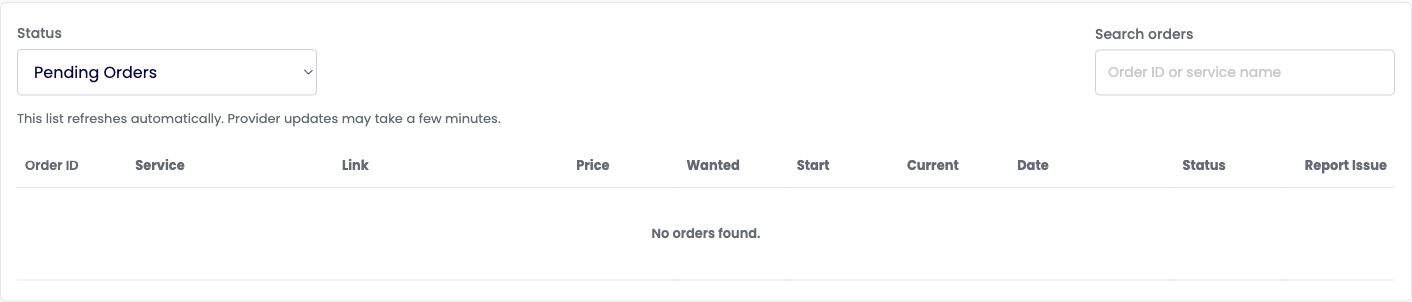
Check your order progress from the My Orders section of your customer dashboard.
Find your order
Sign in and open My Orders → All Orders.
Use Search orders to search by order ID or service name.
Use the Status filter to narrow the list.
Review the order ID, service, link, quantity information, date and status in the matching row.
Read the status
The panel includes Pending, Processing, Completed, Cancelled, Refunded, Error and Stopped order views. Use the status shown on your actual order to follow its progress. If it shows Error or Stopped, or a result you do not understand, ask support to check the order.
The order list refreshes automatically. As noted on the page, provider updates may take a few minutes. A status update does not always appear at the same moment as a change on the social platform.
If your order is delayed
Check the selected service description and its listed start time. Start time is different from full delivery time.
Confirm that the submitted link is correct and still accessible under the service requirements.
If progress is unclear or the expected start time has passed, use Report Issue on the order row when available, or open Support Ticket.
Include the order ID, service, link, order date, current status and a short explanation. Add a screenshot if it helps.
Avoid placing another order for the same link while support is checking the existing one. Any cancellation, refill or refund depends on the service and applicable policy; contact support to confirm your options.
Order tracking screen
This example shows an empty Pending Orders view. Your matching orders appear in the table.